Two-Factor Authentication: What It Is and How to Turn It On
Most of us only think about account security after something odd happens: a “new sign-in” email you don’t recognize, a friend asking why you sent them a strange link, or a password showing up in a breach alert. If that’s what brought you here, take a breath. There’s one small setting that blocks a huge share of these problems, and it only takes a few minutes to turn on.
The short answer: two-factor authentication (2FA) asks for a second proof that it’s really you, on top of your password, such as a code from an app, a tap on your phone or a security key. Even if someone steals your password, they still can’t get in without that second step. Turn it on first for your email, then your bank, social media and work accounts, and choose an authenticator app or security key over text messages when you can.
What two-factor authentication is
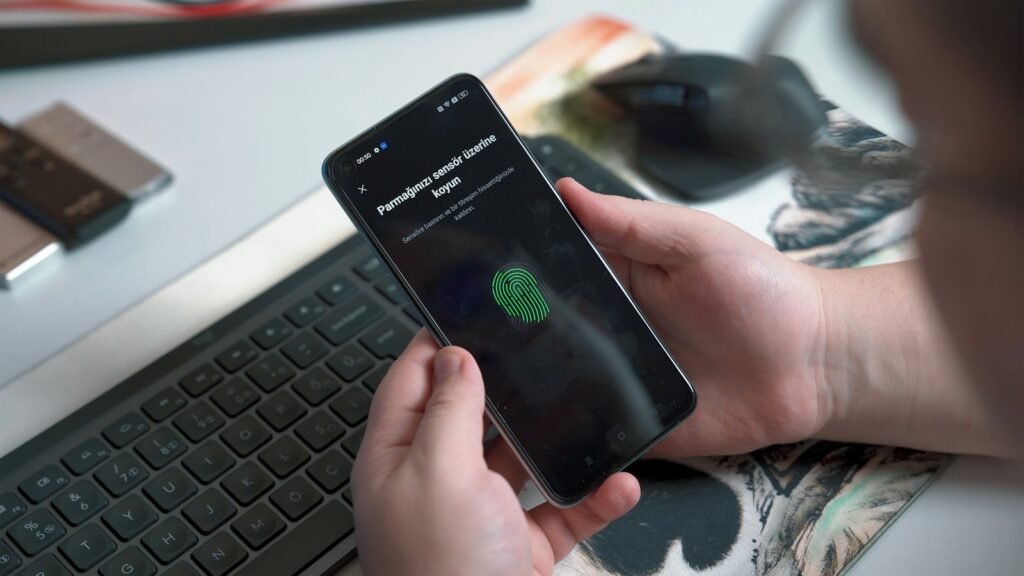
When you sign in, you’re proving who you are. The FTC explains that authentication factors fall into three categories: something you know (like a password or PIN), something you have (like your phone or a security key) and something you are (like a fingerprint or your face).
Two-factor authentication simply combines two of those categories. You’ll also see it called two-step verification (Google’s name for it) or multifactor authentication, often shortened to MFA. They all describe the same idea: one stolen secret is no longer enough to open the door.
Why a password alone isn’t enough
Even careful people lose passwords through no fault of their own. The FTC lists the usual ways it happens: phishing pages that trick you into typing your login, passwords stolen in data breaches and sold, the same password tried on your other accounts, and software that guesses passwords on sites without good safeguards.
CISA, the US cybersecurity agency, puts it plainly for businesses: strong passwords help, but they are no longer enough on their own. Adding a second factor is described as a simple, effective step that can block many common attacks. A password manager still matters, because unique passwords stop one breach from spreading, but 2FA is what protects you when a password slips out anyway.
Two-factor authentication methods compared
Not every second step is equally strong. CISA ranks the common options from most to least secure, and any of them is far better than none.
| Method | How it works | Protection | Good to know |
|---|---|---|---|
| Security key | A small physical key you plug in or tap on your device | Strongest; resists phishing | Buy two and register both, in case one is lost |
| Authenticator app with number matching | Your phone shows a prompt and you enter the number displayed on the sign-in screen | Strong | Stops “approve” taps you didn’t start |
| Authenticator app with one-time code | An app creates a new code every 30 seconds | Good | Works without cell signal |
| Biometrics | Your fingerprint or face confirms it’s you | Good, usually tied to one device | Best combined with another method |
| Text or email code | A one-time code is sent to your phone number or inbox | Weakest of these options | Use only if nothing stronger is offered |
If an account only offers text message codes, still turn them on. A text code is a lot more protection than a password alone.
How to turn on two-factor authentication in 5 steps
The exact menus differ from site to site, but the routine is nearly always the same:
- Start with your email account. Your inbox is where password reset links land, so protecting it protects almost everything else.
- Open the security settings. Look for “Security”, “Sign-in and security”, “Password and security” or “Two-step verification”.
- Choose your method. Pick a security key or an authenticator app if it’s offered; use text messages only as a fallback.
- Save your backup codes. Most services give you a set of one-time recovery codes. Store them in your password manager or print them and keep them somewhere safe.
- Repeat for your important accounts. Next do your bank, business email, social media, cloud storage, and any account that holds payment details.
Setting it up on Google and Apple accounts
Google: Google’s help page says to open your Google Account, tap Security & sign-in, then choose “Turn on 2-Step Verification” under “How you sign in to Google” and follow the steps. Google recommends its on-screen prompts as the second step if you aren’t using a passkey. One detail worth knowing: if you add a phone number for 2-Step Verification, Google says it may take up to 7 days to trust it. Our Google Password Manager guide covers the rest of your Google security settings.
Apple: Apple says two-factor authentication is the default for most Apple Accounts, and features such as Apple Pay and Sign in with Apple require it. When you sign in on a new device or on the web, you’ll need your password plus a six-digit code that appears on your trusted devices or is sent to your trusted phone number. If yours isn’t on, you can turn it on in Settings on your iPhone or on the web.
Backup codes and what to do if you lose your phone
The most common worry about 2FA is getting locked out. A little preparation makes that very unlikely:
- Keep backup codes in a safe place that isn’t your phone alone.
- Add a second method, such as a spare security key or a backup phone number.
- Move your authenticator app before you trade in an old phone. Many apps have a transfer or cloud backup option.
- Keep recovery details current, like your backup email and phone number.
If you do get locked out, use the service’s official account recovery page, typed in yourself. Scammers often pose as “support” offering to restore access, which is a classic phishing trick. And never share a 2FA code with anyone who contacts you; a real company won’t ask for it.
2FA and passkeys
You may have noticed sites offering passkeys. A passkey replaces the password with a sign-in tied to your device and unlocked with your fingerprint, face or PIN. Google’s help page notes that signing in with a passkey bypasses the separate second step, because the passkey already proves you have your device. If a service offers passkeys, they’re a convenient upgrade; if it doesn’t, two-factor authentication remains the best protection you can add today.
If you think an account has already been taken over, our guide on what to do after identity theft walks through the next steps, and our online scams guide covers the tricks to watch for.
Frequently asked questions
Is two-factor authentication the same as two-step verification?
For everyday purposes, yes. Google calls it 2-Step Verification, Apple calls it two-factor authentication, and security agencies often say multifactor authentication. All of them add a second check on top of your password.
Which two-factor authentication method is safest?
CISA ranks physical security keys as the strongest option, followed by authenticator apps with number matching, then apps with one-time codes. Text and email codes are the weakest, but still much better than no second step.
Can two-factor authentication be hacked?
No security is perfect. Scammers sometimes trick people into reading out a code or approving a prompt. That’s why you should never share codes and should deny any sign-in request you didn’t start.
What happens if I lose my phone?
Use one of your saved backup codes or a second method you registered, such as a spare security key. If you have neither, go through the service’s official account recovery process.
Do I need two-factor authentication if I use a password manager?
Yes, ideally both. A password manager keeps every password unique, and 2FA protects you if one of those passwords is still stolen. Turn on 2FA for the password manager itself, too.