
Learning how to use ChatGPT effectively starts with a familiar problem: you know what you mean, but the first draft misses the context. A useful prompt gives the assistant enough background to understand the job and leaves you room to question the result.
You do not need a special formula for every conversation. Explain the situation, describe a useful outcome, and revise the parts that fall short. For a US small-business owner or a Canadian student, that might mean specifying the audience, currency, local context and source material before asking for a draft.
Below are the habits that make the biggest difference, plus prompts you can copy, tweak and use today. The basic prompting habits work without a paid subscription. File, voice, model and project features depend on the tools, limits and workspace settings available to your account.
Quick answer: Tell ChatGPT who you are, what you want, who it is for and what format you need. Give it examples or files to work from, ask it to check its own work, and keep refining in the same chat. Always verify facts, figures and links before you rely on them.
Last updated: 16 November 2026 · Reviewed by the Insight Tech Talk editorial team
In this guide
First, pick the right mode
Use the model and tools available in your account for the task at hand. A reasoning option may be useful for complex analysis, but no model choice guarantees a correct answer. For current names and availability, consult OpenAI’s model release notes and the controls shown in your account. This guide focuses on habits that remain useful when the model names change.
The 4-part prompt formula
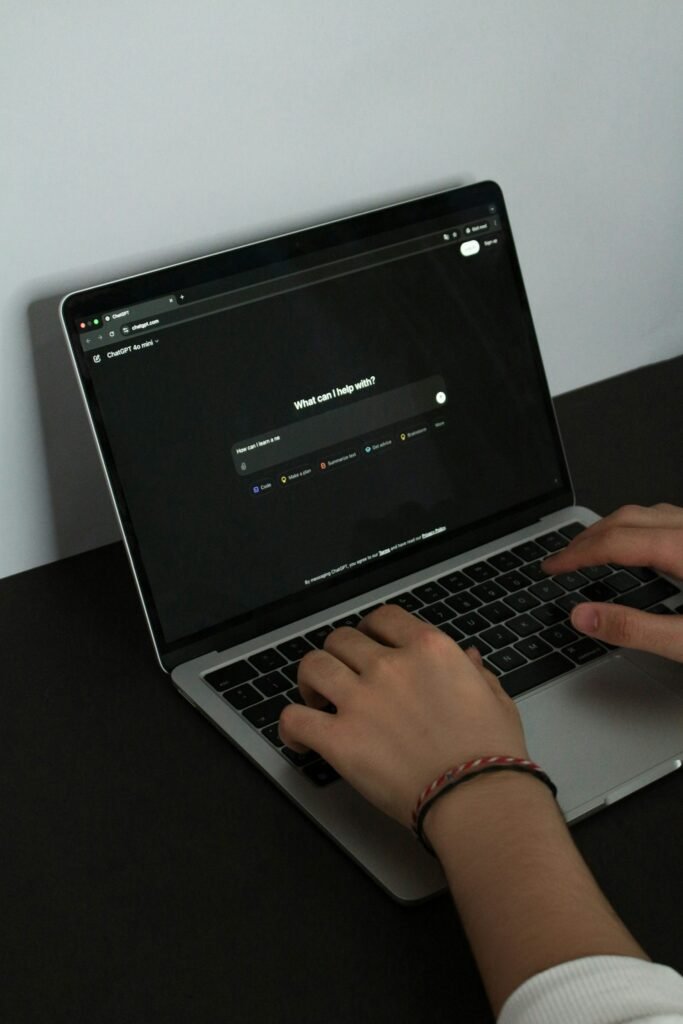
OpenAI’s own prompting guide comes down to being clear about the task, the audience and the result you want. A simple way to remember it:
- Role or situation: who you are and what is going on.
- Task: start with an action verb: write, plan, compare, summarise, explain.
- Context: the details only you know: audience, goal, constraints, what you have tried.
- Format: length, tone, structure (table, bullet points, email), and what to leave out.
Weak prompt:
Write a LinkedIn post about our new product.
Strong prompt:
I run a 10-person software company that sells booking software to dental clinics. Write a LinkedIn post announcing our new automatic appointment reminders. The audience is clinic owners who are not technical. Focus on fewer no-shows, not on features. Keep it under 150 words, friendly and professional, with no hashtags and no emojis. End with a question that invites comments.
Yes, the second one takes about 30 seconds longer to write. It also tends to save you three or four rounds of “no, not like that.”
15 habits that get better results
1. Give it the material, not just the topic
Paste the email you are replying to, upload the report you want summarised, or share your notes. ChatGPT works far better from your real material than from guesses about it.
2. Show an example of what you want
If you have a past email, product description or report you like, paste it and say “match this style and length.” One good example often works better than a paragraph of instructions.
3. Say what to avoid
You know the style: buzzwords everywhere, a long warm-up before the point, a little too much enthusiasm. If that bothers you, just say so. Something like “No marketing clichés, skip the intro, start with the answer” fixes a surprising amount.
4. Ask for options, then choose
Instead of one subject line, ask for ten. Instead of one plan, ask for three different approaches with the trade-offs of each. Choosing from options is faster than fixing a single weak draft.
5. Let it ask you questions first
For bigger tasks, add: “Before you start, ask me up to five questions that would help you do this well.” This catches missing details before they turn into a wrong answer.
6. Break big tasks into steps
For a business plan or long article, first ask for an outline, agree on it, then work through it one section at a time. Quality drops when you ask for everything in one go.
7. Edit in the same chat
Use the conversation’s available context to refine the draft: “Make paragraph two shorter,” “Use simpler words,” “Turn this into a table.” Start a new chat when you switch to an unrelated topic, so old context doesn’t confuse the new task.
8. Ask it to check its own work
After a draft, ask: “Review your answer. What is weak, missing or possibly wrong? Then give me an improved version.” A second pass can expose weaknesses, but self-review is not independent fact-checking. Compare important claims with the source material yourself.
9. Ask for sources, then check them
When facts matter, ask it to search the web and cite sources, then open the links yourself. AI assistants can still state wrong facts confidently, and they sometimes describe a source inaccurately.
10. Set custom instructions once
In Settings, under personalisation, you can tell ChatGPT about yourself and how you like answers (for example, “I write for customers in the United States and Canada; label USD and CAD clearly and explain regional differences when relevant”). Use these preferences as a starting point, and check the instructions in any project or managed workspace you use.
11. Use projects for ongoing work
Projects keep related chats, files and instructions together. They can help with a client project, course or longer piece of writing. Available context depends on memory, sharing and workspace settings; do not assume that every chat automatically uses every file.
12. Review what it remembers
ChatGPT’s memory can store details about you across chats. Check it now and then in Settings, delete anything outdated or private, and turn it off if you prefer every chat to start fresh.
13. Use voice for thinking out loud
Voice mode on the phone app is useful for brainstorming while walking, practising a presentation or interview, or explaining a messy idea before turning it into a written plan.
14. Upload images and files
Take a photo of a confusing bill, an error message, a whiteboard or a product label and ask about it. Upload spreadsheets and ask for trends, totals and charts; it can run calculations rather than estimate them.
15. Keep a personal prompt library
When a prompt works well, save it somewhere you’ll find it again, even a simple notes file. After a month or two you’ll have a small toolkit for the jobs you do every week, and you’ll stop starting from a blank box.
Copy-paste prompts for everyday tasks

Summarise a long document
Summarise the attached document for a busy manager. Give me: the main point in one sentence, the 5 most important facts as bullet points, any deadlines or numbers I must not miss, and anything that needs a decision from me.
Reply to a difficult email
Here is an email from a client who is unhappy about a delayed delivery: [paste email]. Draft a reply that apologises without accepting legal blame, explains the new delivery date of [date], and offers [offer]. Calm, professional, under 120 words.
Learn something new
Explain [topic] to me as if I’m a smart beginner. Start with a simple analogy, then the key ideas, then one common misunderstanding. After that, quiz me with three questions and correct my answers.
Plan your week
Here are my tasks for this week with rough time estimates: [list]. I have about 25 focused hours. Prioritise them by urgency and impact, tell me what to drop or delegate, and give me a day-by-day plan.
Improve your writing
Edit the text below for clarity and grammar. Keep my voice and meaning; don’t add new ideas. Then list the three biggest changes you made and why. [paste text]
Make a decision
I’m deciding between [option A] and [option B]. My priorities are [priorities]. Compare them in a table, list the risks of each, and tell me which questions I should answer before deciding.
Common mistakes to avoid
- Trusting facts without checking. Verify names, figures, quotes, legal and medical information against original sources.
- Sharing sensitive data. Don’t paste passwords, ID numbers, bank details or confidential client data. Check your workplace’s AI policy before uploading work documents.
- Publishing raw AI text. AI-detection scores do not establish whether a piece is accurate, original or useful. Use ChatGPT for drafts and structure, then add your own experience, examples and judgement.
- Giving up after one bad answer. Most poor answers come from vague prompts. Add context and try again.
- Using one long chat for everything. Separate topics into separate chats or projects.
Frequently asked questions
Is the free version of ChatGPT good enough?
For everyday writing, questions and learning, yes. Paid plans add more messages, stronger reasoning models, larger file uploads and extra tools. Prices vary by country, so check OpenAI’s pricing page for your region before upgrading.
Can ChatGPT search the internet?
Yes. It can search the web and show sources, which is useful for recent events and prices. You can ask it directly to “search the web” if it answers from memory.
See the current OpenAI data-controls documentation for the privacy settings available to your account.
Does ChatGPT use my chats for training?
Personal-account conversations may be used to improve models depending on your settings. In Settings, review Data controls and Improve the model for everyone. OpenAI does not train on Business, Enterprise or Edu workspace content by default. Memory and model-training controls are separate.
How do I make ChatGPT sound less like AI?
Give it a sample of your own writing to match, ban the phrases you dislike, ask for shorter sentences, and edit the result yourself. Adding your own real examples is the most effective fix.
ChatGPT’s features, models and plans change frequently. Reviewed November 16, 2026. Feature availability can change; follow the linked official documentation for current details.